Reconnect your software
Restore access when the software asks you to sign in again.
A restored session, followed by a verified connector.
Your path, in three steps.
- 01
Open the sign-in browser
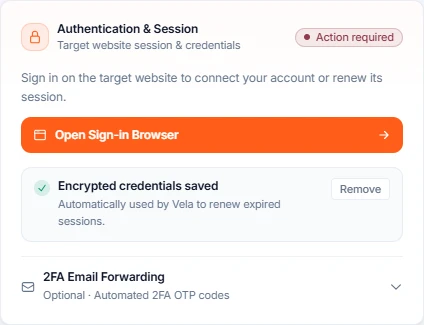
On the affected connector, click Open sign-in browser in the authentication notice.
- 02
Sign in to the right account
Complete sign-in on the website. When you can see your account, click I am signed in — save session.
- 03
Verify recovery
Return to the connector and run Check health. If a problem remains, follow the displayed guidance before taking another action.
Want to go deeper?
Open just the topic you need.
What you are doing
You are reconnecting a connector: giving it a fresh signed-in session on the site it works on, because the previous one was refused. This is also called re-authentication or, in the product's own e-mails, "sign in again".
Why a connector stops working
Websites sign you out. Not because anything went wrong — it is how they work. Some keep you signed in for weeks, many for a single hour. When that happens, your connector is in the same position you would be: it opens the page and the site asks it to log in again. Vela tells this apart from a genuine failure and does not treat it as one.
Its lifetime depends on the software. The connector can refresh it when that flow is supported.
They can allow a fresh sign-in. Additional verification may need your involvement.
This is why a connector can look healthy and still fail
The connector page shows a recent sign-in, and every call is refused anyway — because what expired is the site's own permission, not Vela's record of it.
Recognise an expired session
- On the connector page: a banner saying the connector could not sign in, with a button Open sign-in browser.
- In the Activity & Logs tab: a failed call recorded as an authentication problem, not as a site change and not as a bad input.
- In your inbox: an e-mail asking you to sign in again for one named connector. The link leads to the same page as the button.
- In your own tool: the call is refused with an authentication error while the connector still exists and looks healthy.
Before you start
- The login for the site the connector works on — not your Vela login. These are two different accounts and only the site's one is needed here.
- Whatever the site asks for after the password: an SMS code, an authenticator app, an approval screen. Have it ready, because the sign-in happens in one sitting.
- A browser window you can keep open for a few minutes on the site's own terms.
Two accounts, and only one of them is being asked for here
Your Vela account is the one you signed up with; it owns the connectors and the billing. The connected service account is your login on the site the connector works on, for example the booking tool. Reconnecting asks for the second one. Typing your Vela password into the site's form will not work, and typing the site's password anywhere other than that form is never required.
Reconnect it yourself
- 1
Open the connector page
Connectors in the left menu, then the connector whose session expired.
- 2
Click Open sign-in browser
It sits in the banner that reports the sign-in problem. A page opens titled Sign in for "<connector name>", with a browser showing the site.
- 3
Sign in on the site as you normally would
Use the site's own login and complete whatever it asks for — password, a code by text, an authenticator app, an approval screen. This happens inside the page. Vela runs nothing on your behalf here and performs no business action.
- 4
Wait until the site shows you signed in
Stay on the page until you can see the account is yours — the dashboard, the calendar, your name. Do not press the button while the site is still showing you the login form.
- 5
Click I am signed in — save session
Press it once the site shows you signed in. If the site has an ordinary password form, you are also offered a checkbox: Save these credentials, or Replace the saved automatic-login credentials if one was already stored. Leave it unticked to store only the session; tick it to let Vela sign in again by itself next time. Second factors are never stored either way.
- 6
Confirm the page reports the session restored
The page switches to a Session restored panel, and the button Back to the connector takes you to the connector. If a repair was waiting on this sign-in, the panel says the repair has been queued instead.
- 7
Verify the connector really works
On the connector page, run Check health, or run the connector once from the API Playground in the Live Test tab. A fresh sign-in is a session, not a proof: only a run that comes back with an answer proves the connector is usable again.
- 8
If the site is still refused, hand the repair to Vela
When the sign-in is stored but the connector still fails its checks, the connector page offers Retry repair — named Retry repair & certification when a publication is also waiting on it. Press it once and read the result it reports. Do not press it repeatedly: it starts a repair that runs on its own, and a second press does not make the first one finish sooner. If the state is unchanged after the repair ends, that is a case for support rather than another press.
What Vela does on its own, and what it will not do
Reconnecting by hand is not always needed. Two automatic attempts can happen before you are ever asked. Knowing their limits is what tells you when to step in.
| What happens | Limit |
|---|---|
| The connector renews its own session | Silently, as often as the site allows. You are not told, because nothing failed. |
| Vela signs in with your saved password | One unattended attempt per connector, then a 24-hour pause on that connector. This is deliberate: a password form must never be submitted over and over. |
| If that attempt needs a second factor | A verification step appears on the connector page, or an e-mail is sent, and a person finishes the sign-in. |
| When a person is required | Vela stops trying and waits for you. It does not keep guessing. |
Why you are sometimes asked instead of being helped
Sites protect their login form on purpose: a wrong password tried repeatedly locks an account. So Vela makes one unattended attempt, then stops and asks a person. Seeing a reconnection request is the design working, not a defect.
MFA and verification codes
If the site asks for a second factor, Vela can hold the sign-in open long enough for you to complete it, and the connector page offers a field to type the code with a Verify code button. If a code has expired, use Request new code to get a fresh one. Codes are never stored, and neither is anything else you type into that form.
When it fails
| What you see | What it means | What to do |
|---|---|---|
| The page says the interactive sign-in browser is not configured | The test or self-hosted environment has no browser attached. | This is an environment limit, not a mistake of yours. Reconnection has to be done in an environment where the sign-in browser is available. |
| Signing in succeeds, but the connector still fails its checks | The session was saved, the site refused the work for another reason. | Read the entry in Activity & Logs: an input problem and a changed site are different failures. If it says a repair is queued, wait for it. |
| The reconnection page reports the connector could not be opened | The connector is not reachable, or your access is not enough. | Reload once. If the message repeats, the connector may have been deleted or moved — check the list before trying again. |
| You were told a repair was queued and nothing changed afterwards | A repair runs on its own schedule. | Do not press Retry repair repeatedly. Check the connector page and its Activity & Logs once; if the state is unchanged, that is the case for support, not a second retry. |
Never repeat an action whose outcome you cannot see
If a run that books, sends or submits ended with an unknown result, do not launch it again to find out. You would be duplicating a real booking, message or order on a live system. Open the entry in Activity & Logs and the API Playground result first; only repeat once you know the first attempt did not land.
What Vela keeps, and what it does not
| Kept | Where | For how long |
|---|---|---|
| Your session with the site | Encrypted | A day, then renewed |
| Your password, only if you ticked the box | Encrypted | Until you delete it |
| The recording of your build | With the connector, never shared | Until you delete the connector |
You can see, replace or delete a saved password at any time from the connector page. Deleting it does not stop the connector — it stops the automatic sign-in, so the next time the site logs the connector out you are asked to reconnect instead.
Where to go next
- Something else is wrong with it: Troubleshooting.
- You want fewer of these: What Vela stores and the checkbox on the reconnection page.
- Same login on several accounts: The same connector for several accounts.
What is stored, what expires, and what renews without you.
↗Your situation doesn’t match the guide?
Talk to the team ↗